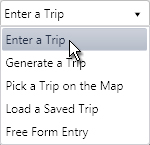
Use the Trip page to plan and evaluate your route.
Note: Your origin and destination may be an address, a specific intersection or exit, or a State border.
From the Trip Definition drop-down, choose the Enter a Trip option.
The Trip Definition pane will change, reconfiguring to allow you to define your trip by choosing a start location (or address), identifying points of transition along the way, and designating your destination.
Click the Start radio button then access alternative Start/End point identification methods by expanding the drop-down and choosing from the available options.
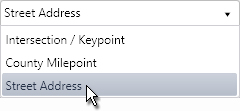
Choose the Intersection/Keypoint option then enter a Location in the field provided.
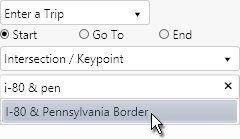
You need only enter the first few letters or numbers of the location name (ex, i-80) before the system begins prompting you with likely candidates for the intended point of origin. Choose from the options then hit the Add button to set the set the location as the starting point of your trip.
Chose the County Milepoint then enter a route number in the field provided.
You need only enter the first few letters or numbers of the route number before the system begins prompting you with likely candidates for the intended route. Upon selecting the desired route from the options, the system will present you with a list of counties from which to choose. Click on a county then hit the Add button to set the border of the chosen counting as the starting point of your trip.
Choose the Street Address option then enter the address from which you will be travelling.
It is likely that the street address you give will not fall directly on a routable road. An alert will appear to tell you when this is the case. Click the OK button to acknowledge the alert.
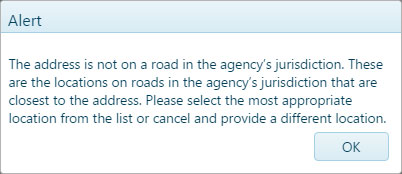
Options for a point of entry to the routing network will appear below. When you click on an option, the map will zoom and center on the chosen spot. If the entry point is desirable, click the OK button.
Click the Go To radio button then enter the first few characters of the transition location name. Give the system a few seconds, and it will present you with recognized locations that begin with the characters you’ve entered. Choose from the available options and strike the Enter key to set a transition point for your trip.
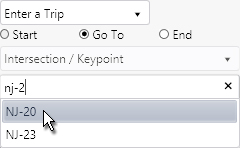
If you have a street address for a stop along your route, check the Enter Location by Address box and supply the address in the space provided.
Click the End radio button then enter the first few characters of the destination name. Give the system a few seconds, and it will present you with recognized locations that begin with the characters you’ve entered. Choose from the available options and strike the Enter key to set the end point for your trip.
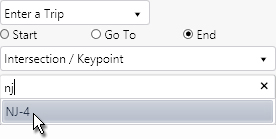
Both the Map and the Defined Trip Locations box display the stages of your trip as you enter them.
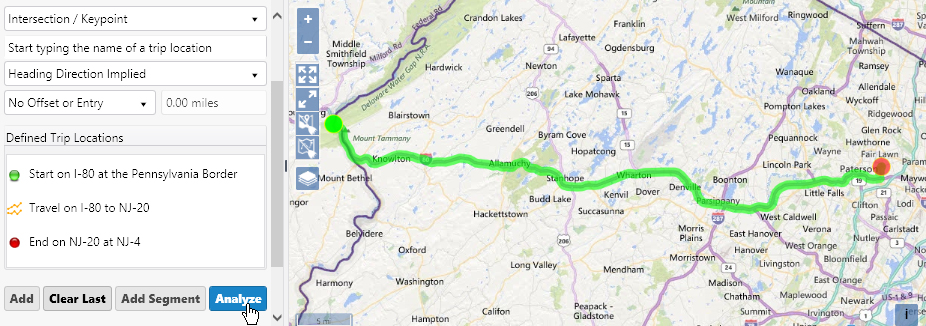
Click the Analyze button to have the system evaluate your trip.
Review the results on the Analysis Results & Directions pane.
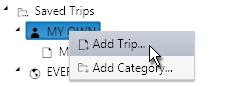
Right-click on the My Own folder then choose Add Trip from the pop-up menu.
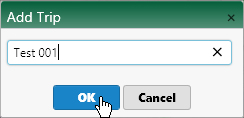
On the Add Trip dialog, enter a name for the trip then click the OK button.
Click the Save button to avoid losing your application.

Click the Continue button.
